Guide
How to make a flying Roadster AI video from one photo
You can make a flying Roadster AI video from one photo without using a one-click template. You will need three things: a clean car photo, a reference clip that contains the motion you want, and an AI video tool that accepts both an image and a video reference. The work is in preparing the inputs and checking the output.
This flying Roadster AI video guide is for doing it yourself. It covers the general workflow, the settings that matter, the angle problem that makes cars drive backwards up the ramp, and the failures worth checking before you post. If you would rather skip the setup, the one-photo template is described at the end.
What you need for a flying Roadster AI video
- One car photo. A front three-quarter view is the usual starting point: it shows the front, one side, the wheels, the roof and the body shape. A sharp daylight photo is easier than a dark or blurry one.
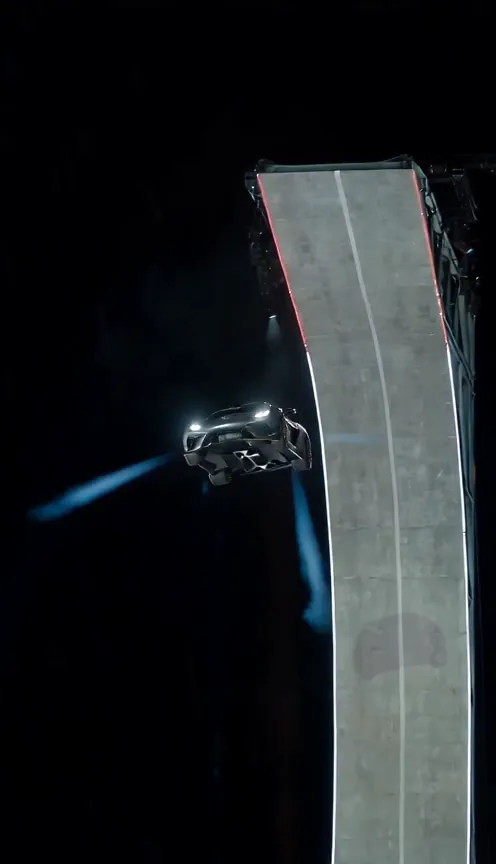
- A reference clip. The clip supplies the camera path, timing and action. For the ramp look, you want a clip that starts with the car's rear facing the camera and moves away toward the ramp.
- A tool that supports the inputs. Check whether it accepts video reference plus image reference, or only image-to-video. Those are different jobs.
- Time for a few attempts. Generation can take minutes, and the first result is not always the best one.
Three ways to make a flying Roadster AI video
| Method | What you provide | What you get |
|---|---|---|
| One-click template | One photo and a choice of resolution | The template's fixed action, usually with preset sound and delivery |
| General video-reference tool | A car photo, a reference clip and prompt/settings | A custom clip that follows the reference more closely, with more control and more failure points |
| Manual editing or compositing | Footage, plates, tracking and editing software | The most control, but this is a different skill set and much slower |
Most people asking “how do I make one from a photo” want the middle route: an AI tool, one image and a reference. It is flexible enough to look custom and simple enough to attempt without a video crew.
Step 1: prepare the photo for a flying Roadster AI video
The photo decides how much the model knows about your car. Use one vehicle, fill the frame with the whole body, and keep the wheels visible. A front three-quarter view gives the model the most information in a single image. A side view can work; a tight crop of the grille cannot.
Avoid heavy filters, motion blur and busy backgrounds. If another car overlaps the body, the model may blend the two. If the photo is dark, the paint and wheel details become guesses.
You may also want a rear three-quarter view of the same car. The ramp reference starts from behind; a front-only image can confuse the direction. If the tool accepts multiple images and you can photograph the car again, use a second photo of the same vehicle. Check that its paint and wheels match.
Step 2: choose the flying Roadster reference clip
The reference does most of the visual work. Choose a clip with a clear subject, a stable camera and the action you actually want. For a 10-second ramp video, a 15-second reference with a complete climb, launch and landing is a better match than a five-second fragment.
Clean the reference before you use it. Crop out TikTok watermarks, user interface elements and channel logos. A prompt that says “no watermarks” will not reliably remove a watermark that is baked into the reference frames.
Check the rights too. A clip you found online is not automatically yours to reuse. Use footage you shot, footage you have permission to use, or a reference supplied by the tool. If you publish the result, you are responsible for the source material.
Step 3: pick the right mode
A tool that accepts a video reference is not the same as an image-to-video tool. With a video reference, you are asking the model to keep the camera path, timing and action while replacing the subject. With image-to-video and a text prompt, you are asking it to invent the motion. The second route is less likely to reproduce this exact ramp.
If the tool offers separate modes for “reference to video”, “motion transfer” or “subject replacement”, read what each one actually does. Some modes keep the background and replace the subject; others generate a new scene inspired by the reference. The labels are not consistent across products.
Step 4: set the parameters
Aspect ratio, duration, resolution and audio are request settings, not prompt text. Put them where the tool expects them:
- Aspect ratio: 9:16 for TikTok, Reels or Shorts.
- Duration: match the reference and the output you want. For this ramp, 10 seconds. The short templates use 5 seconds. Do not stretch a short reference well beyond its length and expect clean motion.
- Resolution: use the highest resolution the tool supports for the version you plan to post.
- Audio: on if the tool supports generated sound; otherwise add sound later.
If the prompt also says “9:16” or “10 seconds”, remove it. Repeating a setting in two places can create a conflict, especially when the duration differs.
Step 5: write the prompt
Keep the prompt narrow. The model needs to know which car to use, what to preserve, and what to exclude. A generic structure works:
Use the uploaded photo as the exact hero car. Preserve its paint,
wheels, body shape and distinctive details. Use the reference video for
the scene, camera movement and action. Replace only the hero vehicle.
Do not add text, logos, watermarks, extra vehicles, people or new stunts.
Do not fill the prompt with scene nouns that are already in the reference. The reference supplies the ramp, lighting and timing. Your prompt supplies the subject and the constraints.
Step 6: review and change one thing
Watch the whole clip once at normal speed, then pause on the car. Start with direction, wheels and body shape. If the car is reversing, fix the angle before you change the prompt. If the wheels are melting, improve the source photo or reduce the amount of motion. If the clip cuts, check the duration and the reference.
Keep the previous result. Change one input, generate again, and compare. Changing the photo, prompt and duration at the same time tells you nothing about which change helped.
The angle problem in detail
The ramp reference begins with the car facing away. If your only image shows the front, the model can preserve that front-facing view and run the motion in reverse: the car backs up the ramp, then turns around at the top. The wheels and paint may look fine while the direction is wrong.
There are two practical fixes:
- Use a rear three-quarter photo. This is the simplest single-image fix for the approach. You lose some front detail at the landing, but the direction is right.
- Use two images. Supply a front three-quarter image for the landing and a rear three-quarter image for the approach. Tell the model that both are the same car and which image should guide which part of the shot.
Common failures and the first fix
| Symptom | First fix |
|---|---|
| The car reverses up the ramp | Change the input angle: rear three-quarter or two images. |
| Wheels change shape or count | Use a sharper full-car photo; avoid extreme crops. |
| The body melts or stretches | Simplify the scene and keep the reference action; reduce competing motion. |
| The clip loops or cuts | Match the requested duration to the reference; use a clip with a complete action. |
| A watermark or text appears | Clean the reference before generation; do not rely on the prompt. |
| The car looks like a different model | Use a clearer photo and fewer competing references; check the rear image if you supplied one. |
| The audio is wrong or missing | Check whether the tool generates sound; otherwise add engine/thruster effects in an editor. |
How much does a flying car AI video cost?
Video tools price generations differently, and a failed generation may still use a credit; check the failure policy first. Our fixed flying Roadster AI video template is $6.90 for 5 seconds or $13.90 for 10 seconds, with 720p and 9:16 or 16:9 included.
AI video is stochastic. The same photo and prompt can produce different wheels, different body proportions or a different landing. Plan for multiple attempts, and do not promise a client or a customer an exact result from one run. A good input improves the odds; it does not guarantee the output.
Download and post your flying Roadster AI video
Export the MP4 in the aspect ratio you chose, 9:16 or 16:9. Watch it on a phone, not only on the desktop preview. Check the first second, the turn, the landing and the final frame. If you add music, use a track you have the right to use and mute any existing audio so the beat does not double.
Label the clip as AI-generated on TikTok, Instagram, YouTube or wherever you post it. Do not present it as real footage of your car, a real test or a Tesla demonstration. The joke works without the false claim.
If you would rather skip the setup
The ramp template uses one car photo for people who want this look without choosing a model, writing a prompt or editing a reference clip. Choose the template and aspect ratio on the main page.
For background, read what the flying car AI trend is or whether the Roadster demo was real.
Questions
Can I make a flying Roadster AI video with one photo?
Yes, if the tool accepts an image reference. One front three-quarter photo can supply the car's identity. The motion has to come from a reference clip or a text prompt, and the result will vary.
Why does the car go backwards up the ramp?
The reference starts with the car's rear facing the camera. A front-only image can make the model keep the front facing the camera and reverse the motion. Use a rear three-quarter image, or two images of the same car.
Does a flying Roadster AI video need a reference clip?
For this specific ramp action, yes, if you want the same camera path and timing. A text prompt alone will not reproduce the reference clip's exact motion.
How many attempts should I plan for?
Two or three. AI video is stochastic; wheels, body shapes and motion can change between runs. Change one input at a time so you know what helped.
See the flying Roadster AI video templates · Compare 5s and 10s pricing
Make your own ramp video
Choose a template, aspect ratio and car photo on the main page.
Set up your video